Install Odoo AI Gateway Connector
Purchase gateway connector plugin
- Visitofficial store, search products [AI gateway connector|Odoo 20].
- Proceed with product purchase and payment.
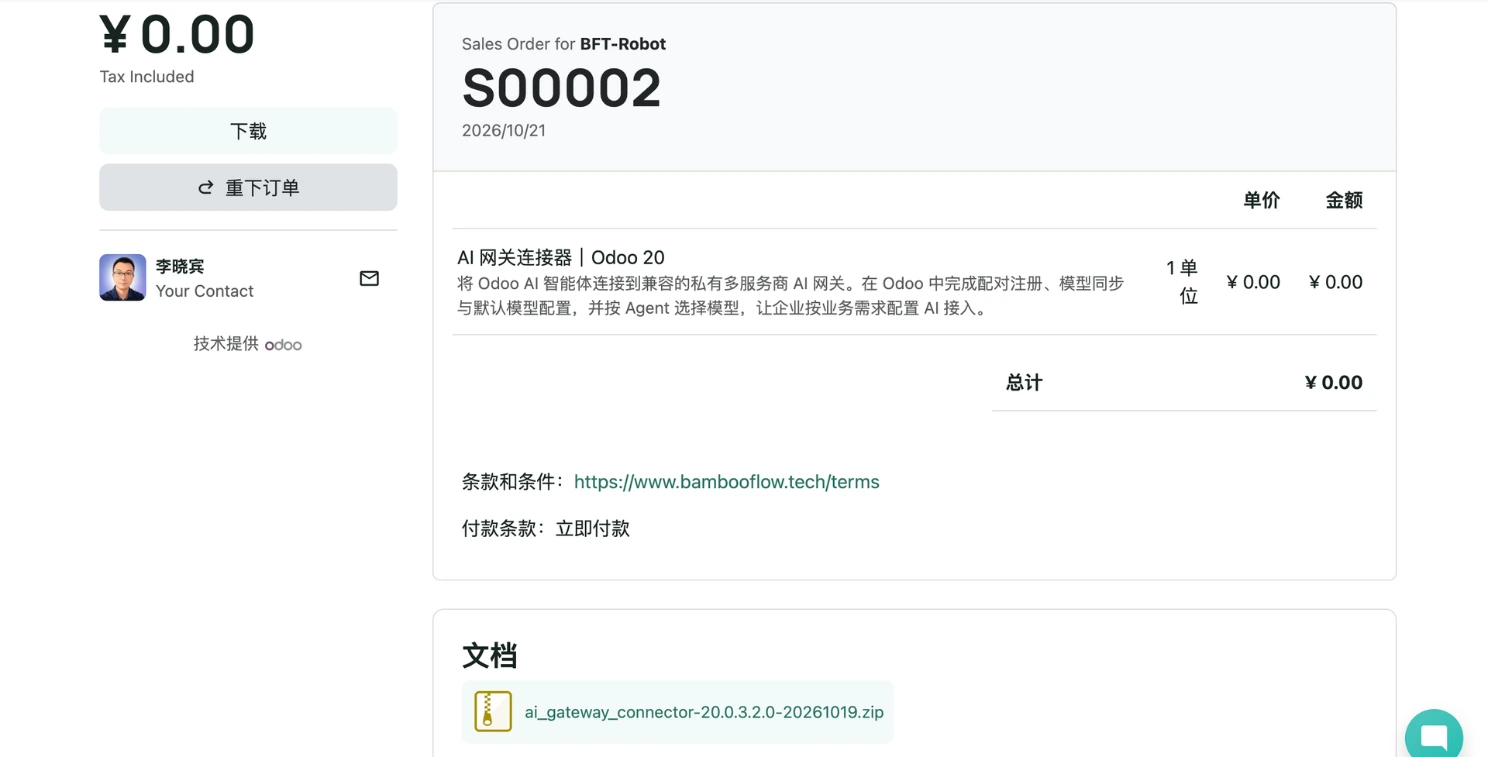
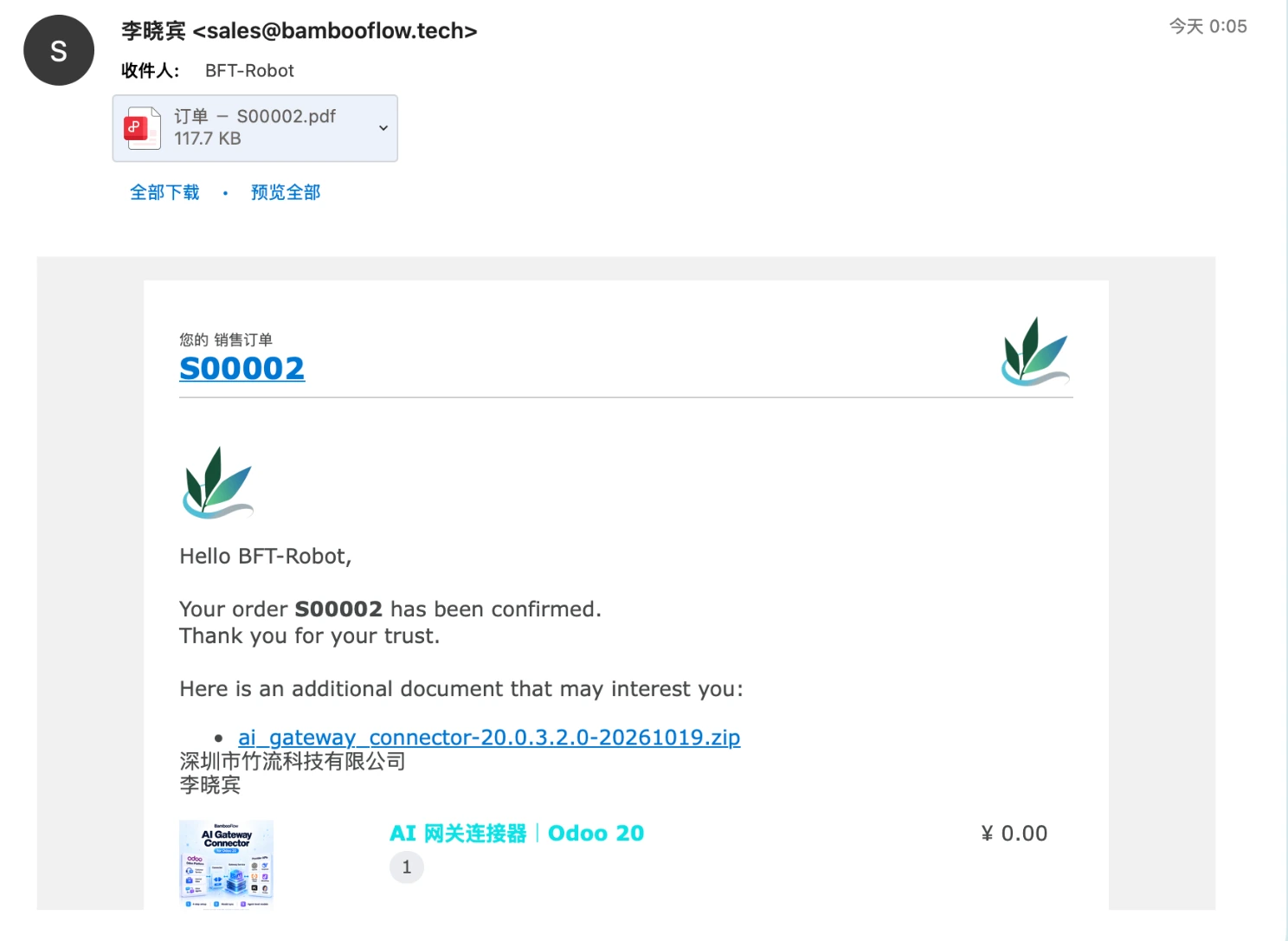
- Check order email or order details page
- The download link for the plugin ai_gateway_connector-xxx.zip will appear
- Click the link to download the plugin
Install the plugin
- Place the purchased plugin into the server's addons directory.
- After restarting the service, update the application list.
- Search for ai_gateway_connector.
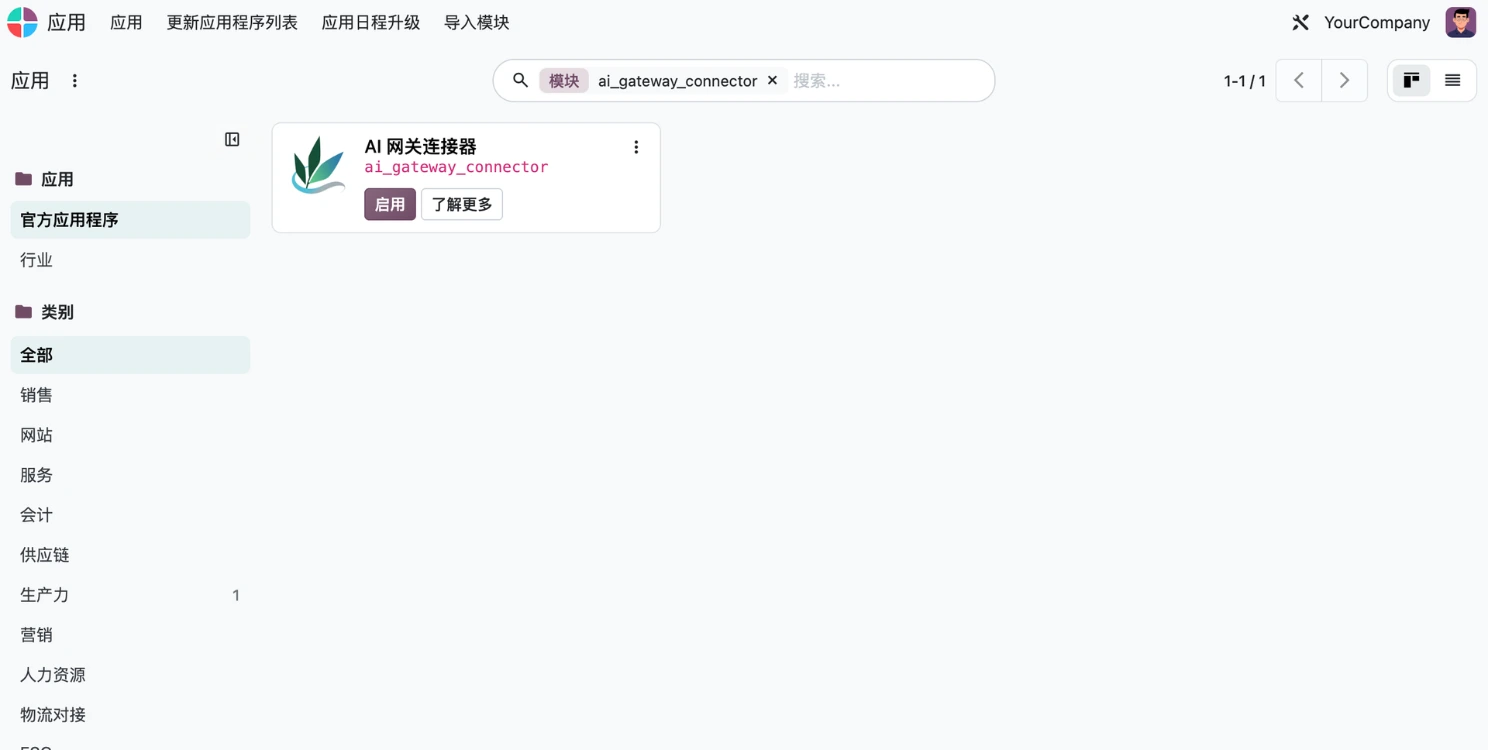
- Click [Enable] to install.
Configure gateway
Connect to external AI vendor services through a four-step configuration.
Register gateway account
- Add AI gateway [Admin] permissions to the management account.
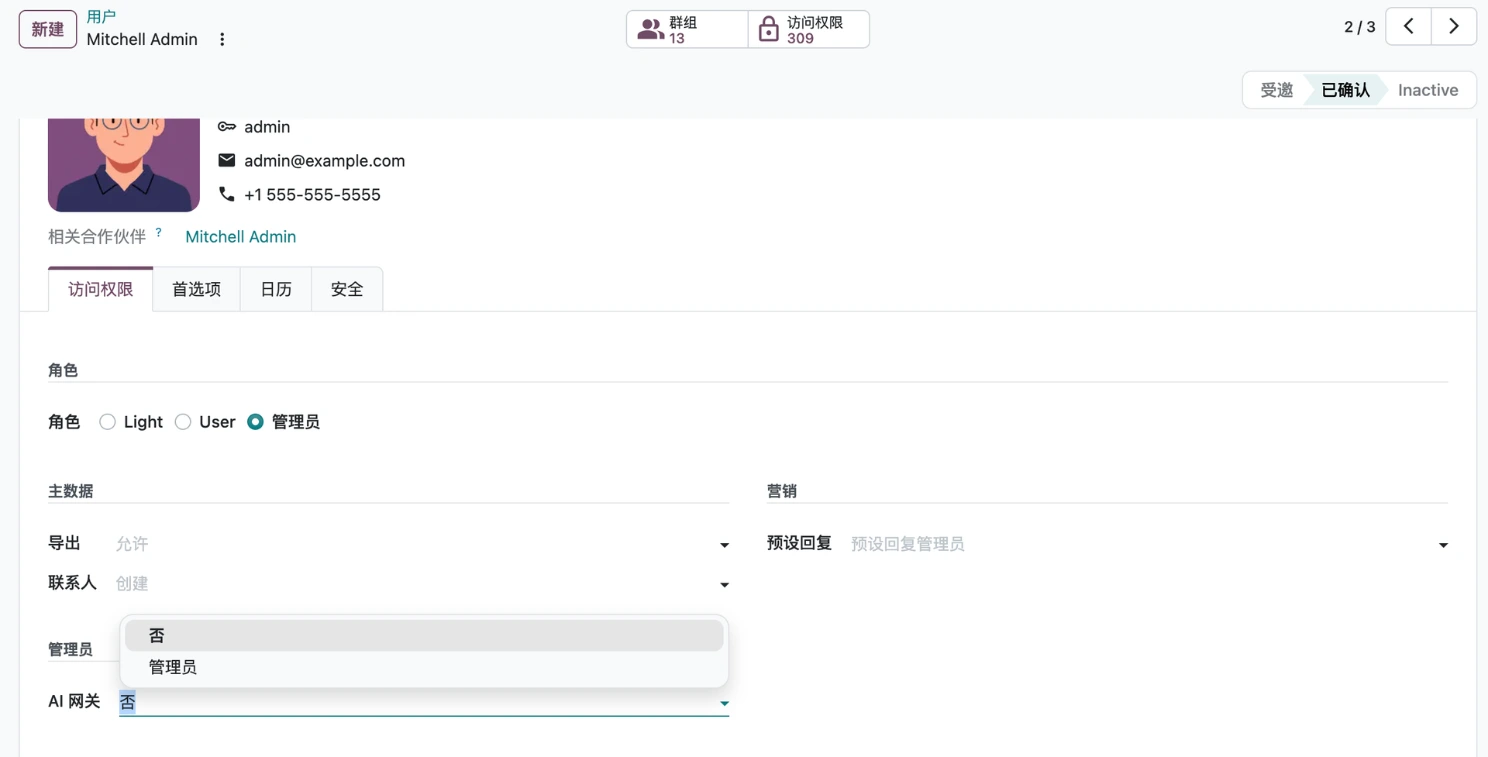
- Log out and log back in to enter [Settings]->[General Settings] page.
- Fill in the gateway address and gateway registration key, click [Generate pairing code].
Since this is currently an invitation phase, the gateway registration key needs toContact usto obtain
-
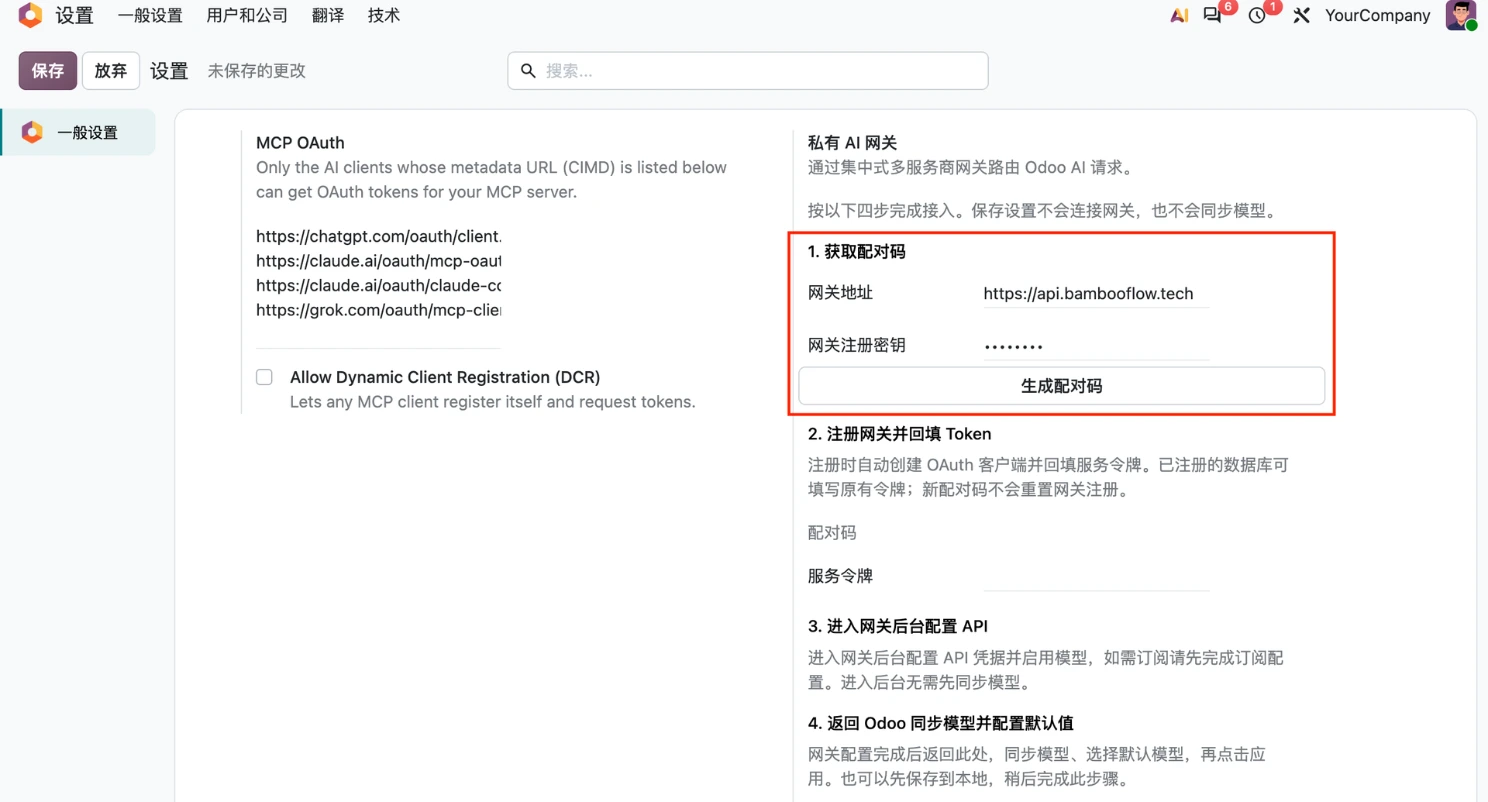
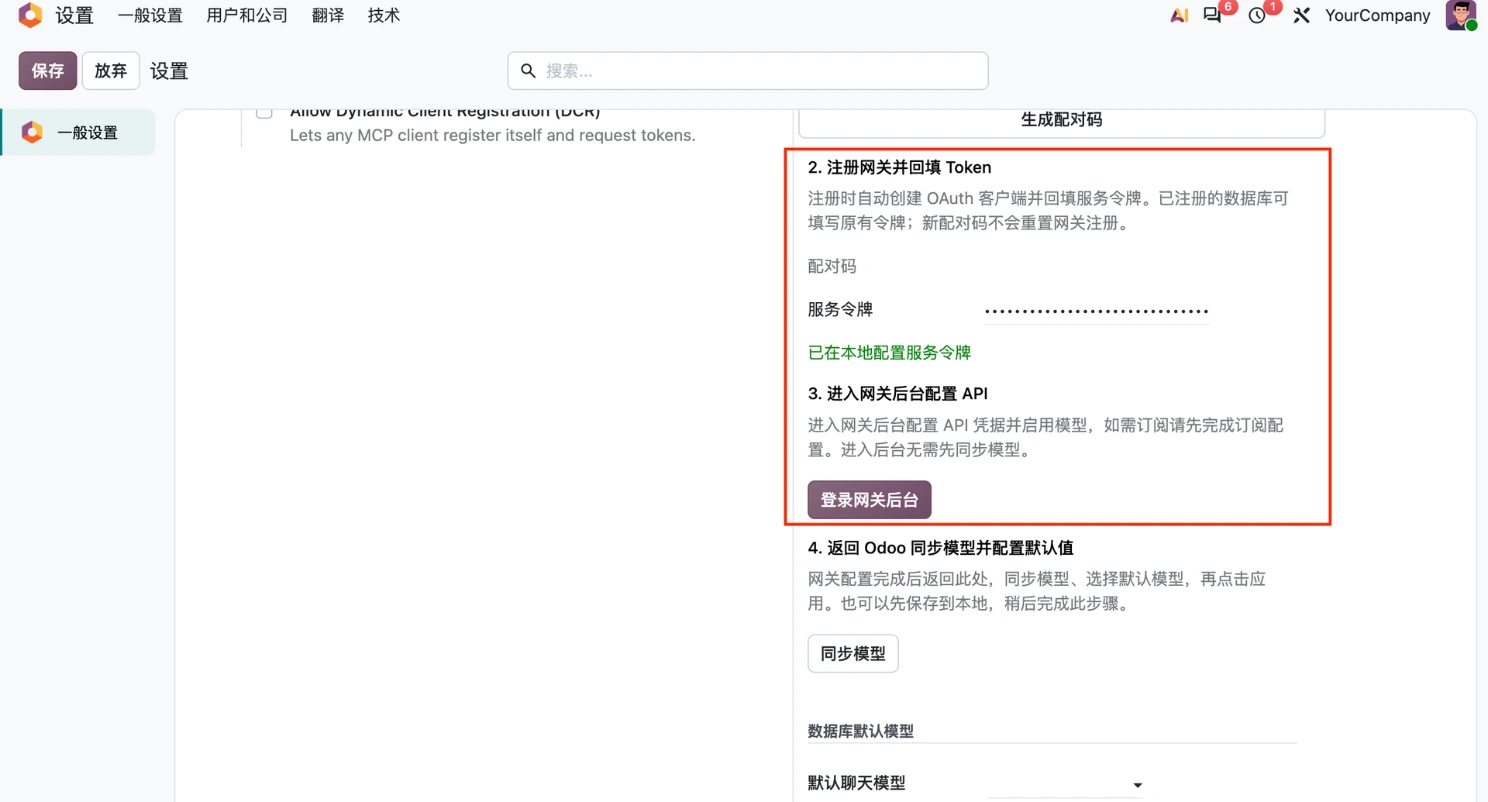
- After the pairing code is generated normally, a prompt will appear [Pairing code has been generated. The pairing code is valid for 10 minutes.], and the button will display [Register gateway backend], click [Register gateway backend] for automatic gateway backend registration.
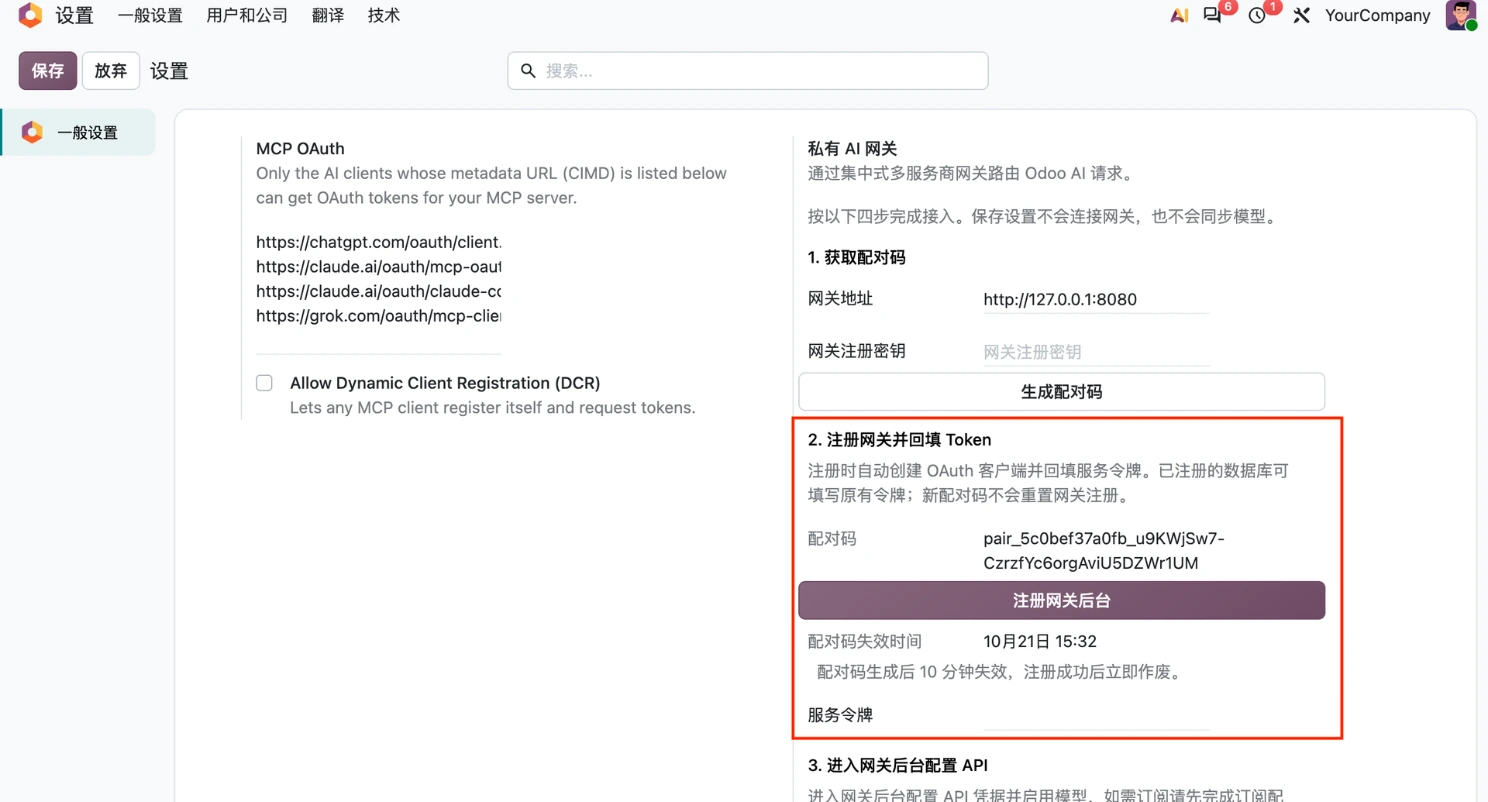
- After successful registration, a prompt will appear [AI gateway has been registered. The service token has been saved to the current database.], the service token has been automatically saved successfully. [Log in to the gateway backend] button will also be displayed.
Configure AI service provider
- Click [Log in to the gateway backend] button to enter the gateway backend management page
The first time you use it, you will see [Grant Access] prompt, select the desired validity period. It will pop up again after expiration.
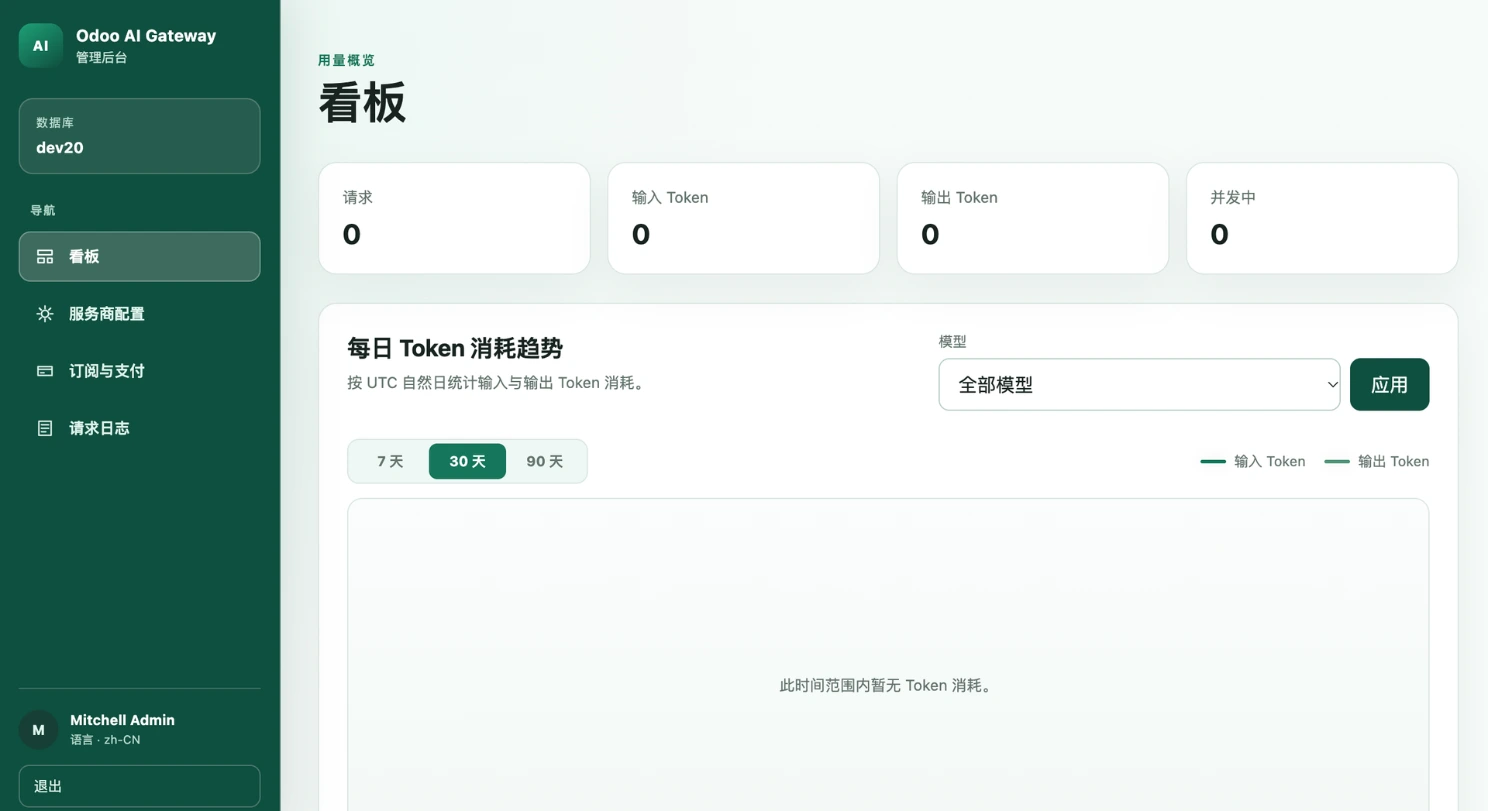
- Click on the left [Subscription and Payment] menu to purchase the gateway service package, you can continue after the purchase.
Invite users and we will activate the test package.
- Click on the left [Service Provider Configuration] menu to enter the AI model service provider configuration.
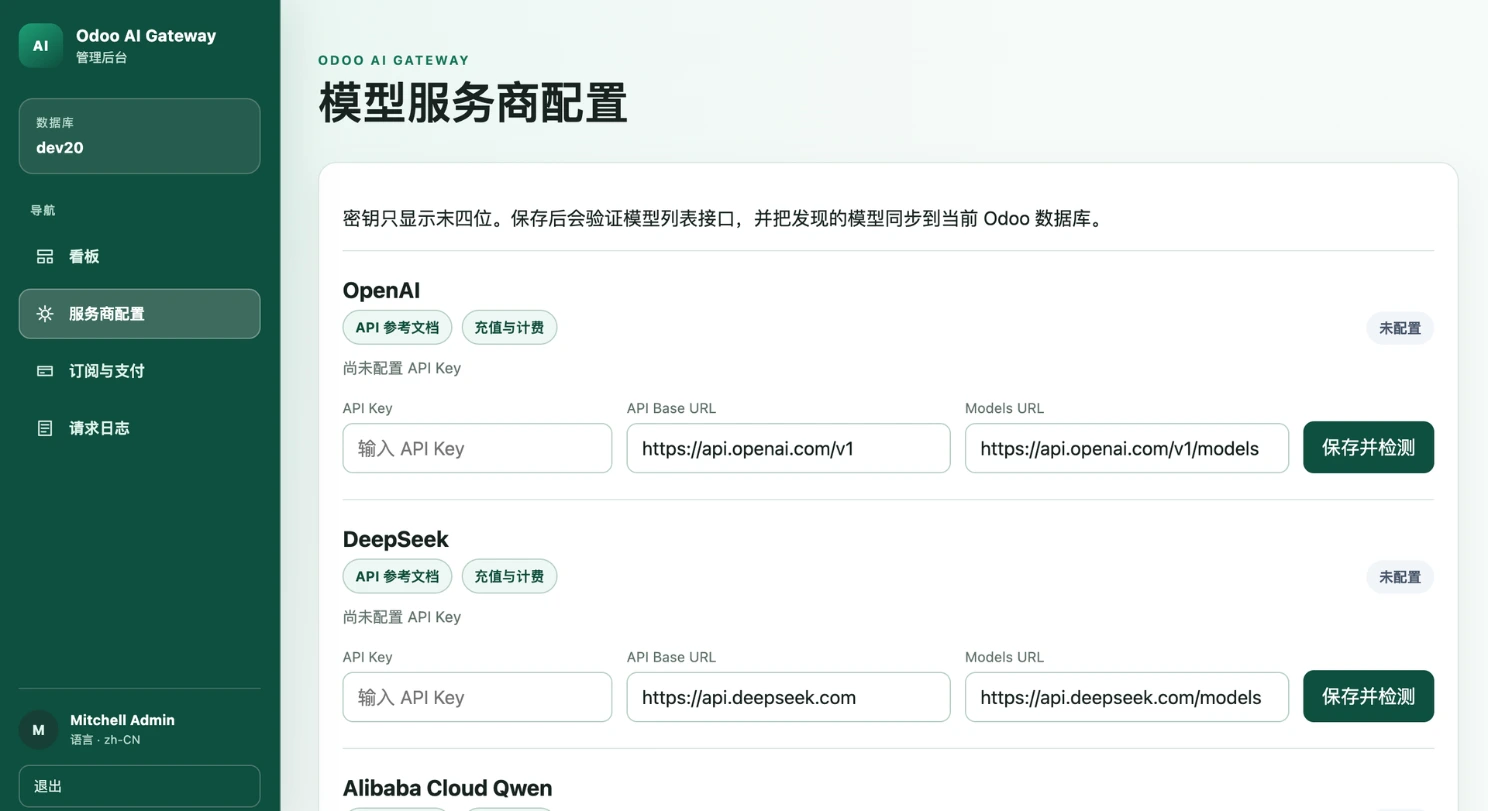
- Select the service provider you wish to connect to, enter the API Key, API Base URL, Models URL, and then click [Save and Check] . The model list will display after successful loading.
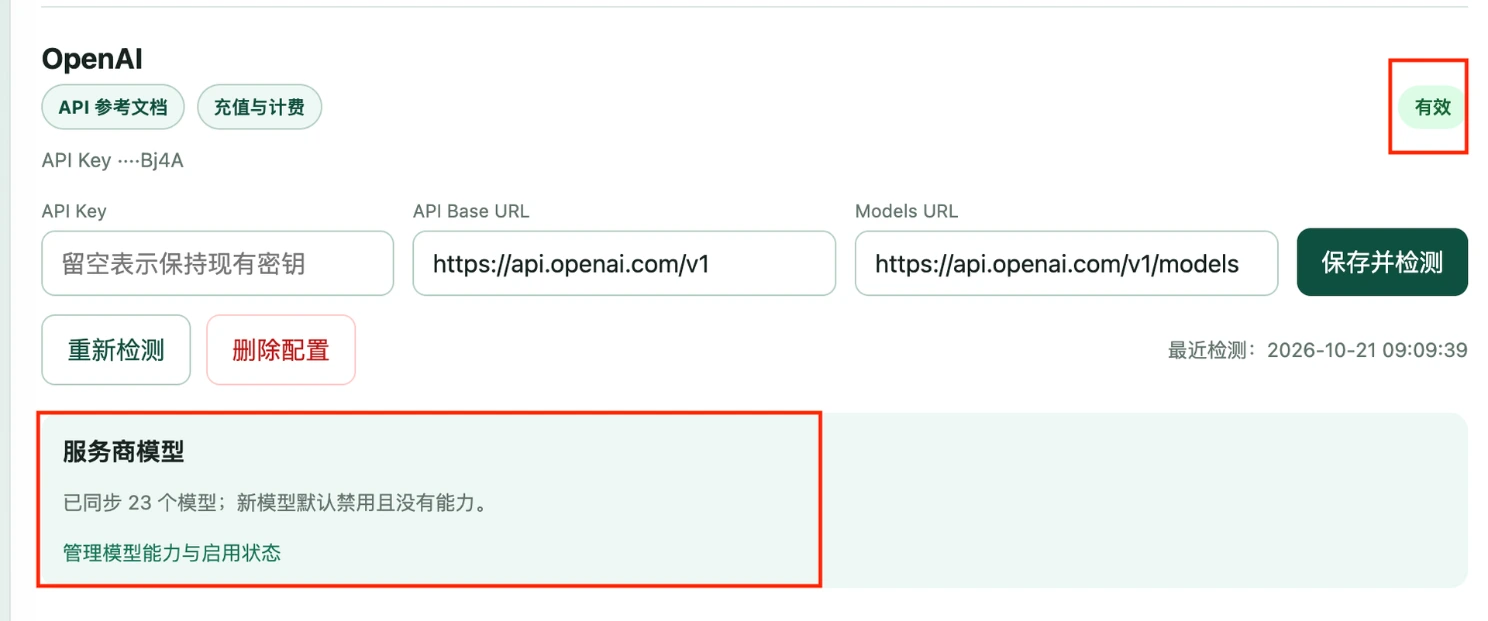
- Click [Manage Model Capabilities and Activation Status] to enter the activation configuration for the model you wish to call.
Note: The chat model used by the Odoo agent needs to have tool invocation capabilities.
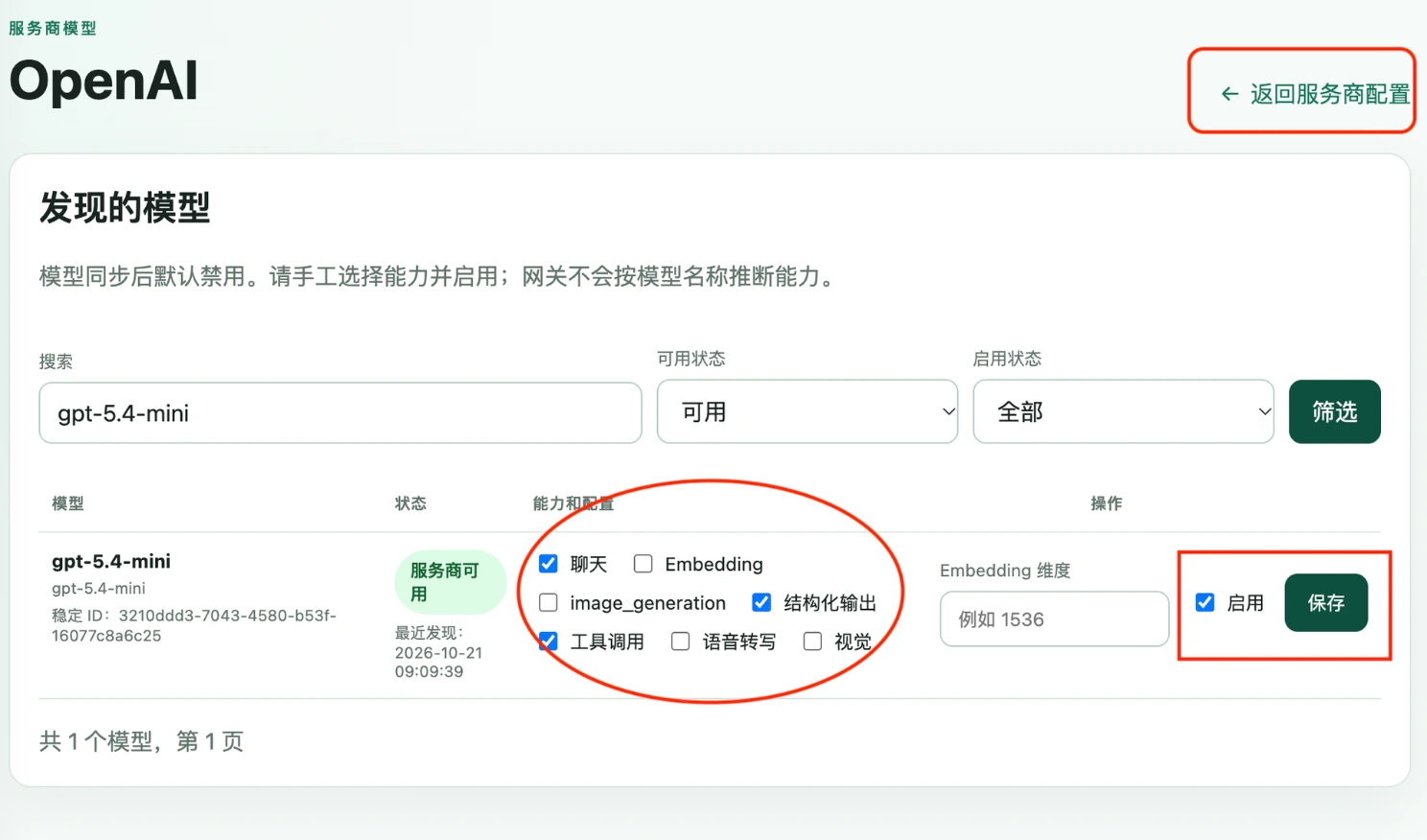
- Check the model [Capabilities and Configuration],[Operation] to enable it, then click [Save].
- Click [Return to Service Provider Configuration] to return to the model service provider list.
Synchronize model configuration.
- Switch back to the Odoo settings page, click [Synchronize Model] button. The system will prompt the following message:
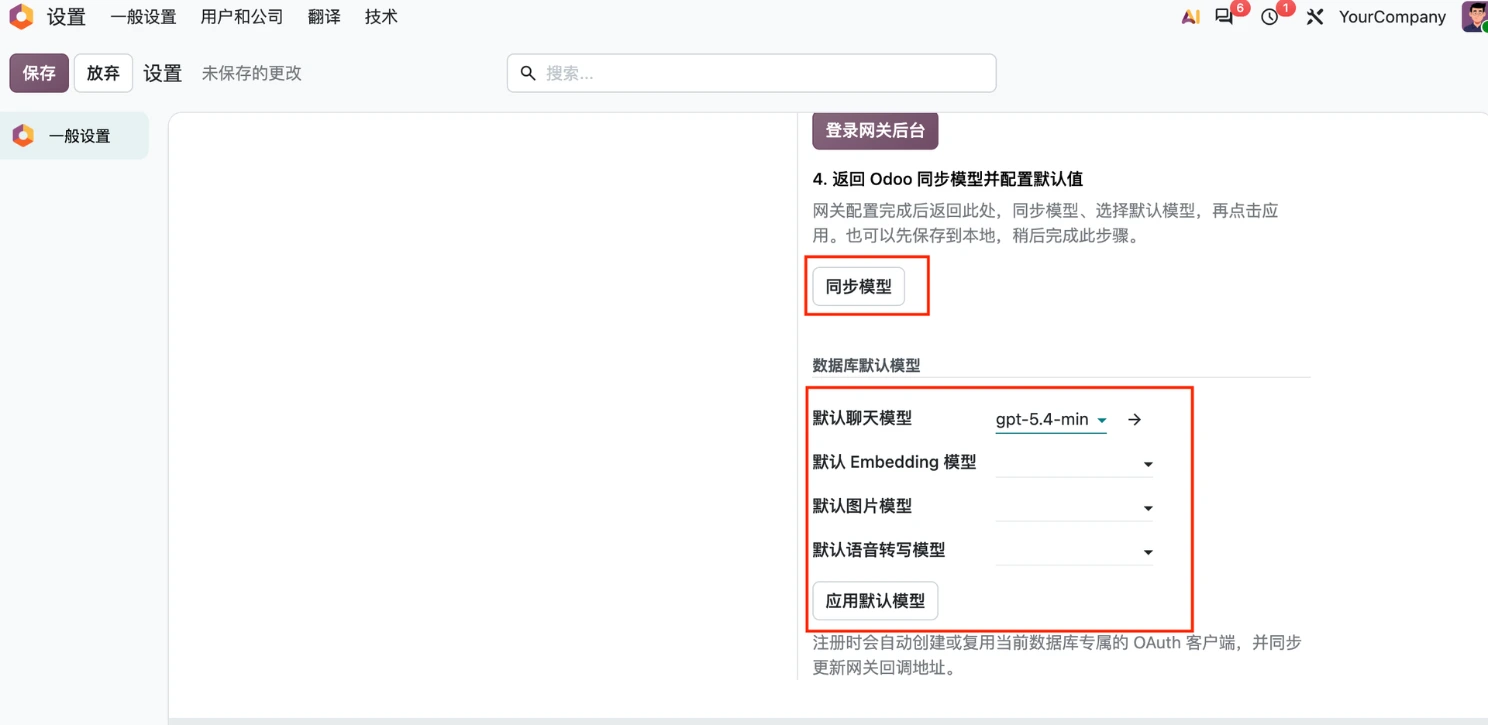
AI model has been synchronized. There is currently 1 available model; 0 model allocations have been migrated; 0 unmatched allocations have been cleared.
Configure the default model for Odoo Agent.
- Configure the default model for Odoo.
You must synchronize before you can select the configuration.
- Click [Apply Default Model] to enable the relevant models in Odoo.
- Perform [Artificial Intelligence] module, select the test agent for model testing.
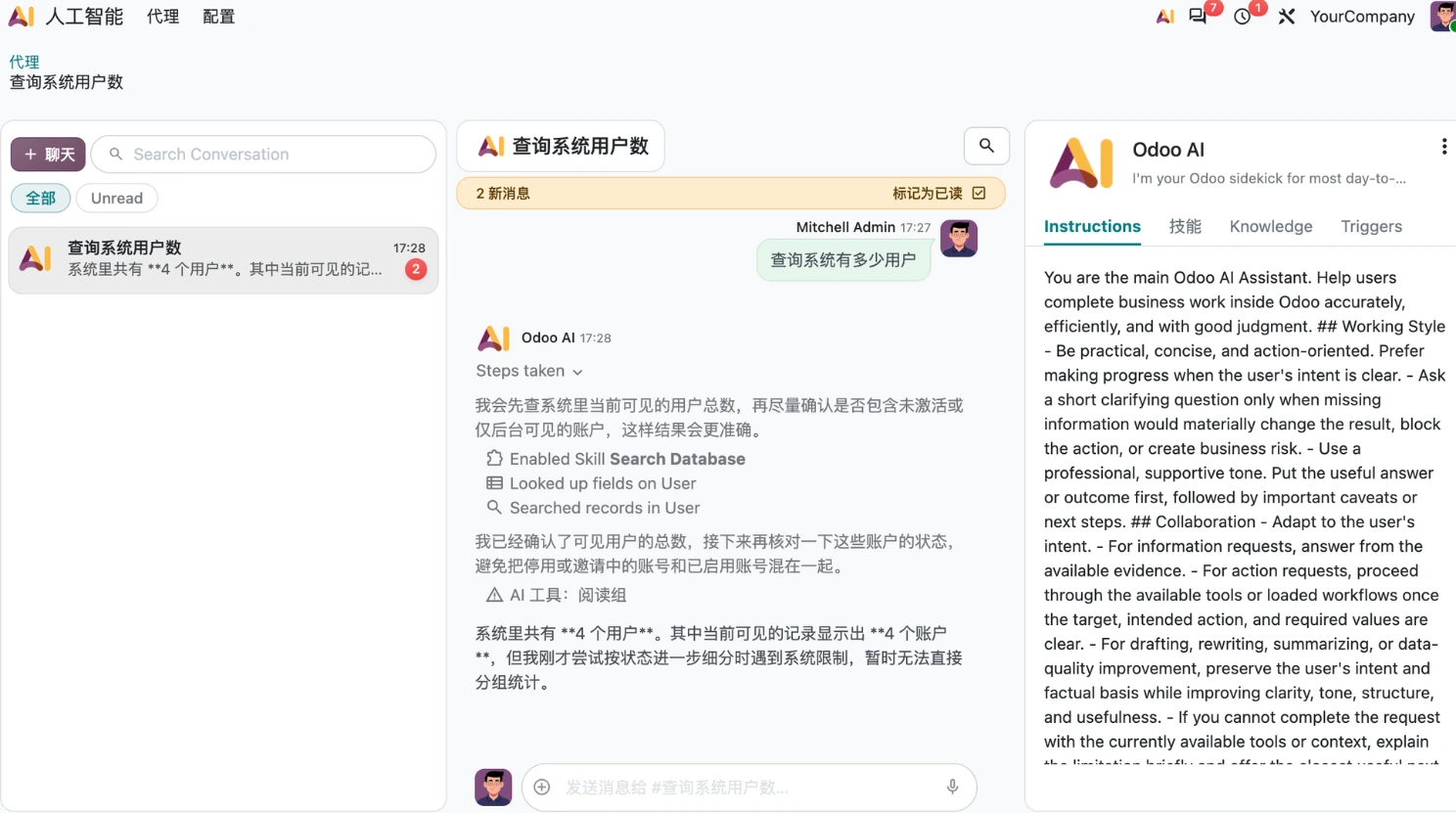
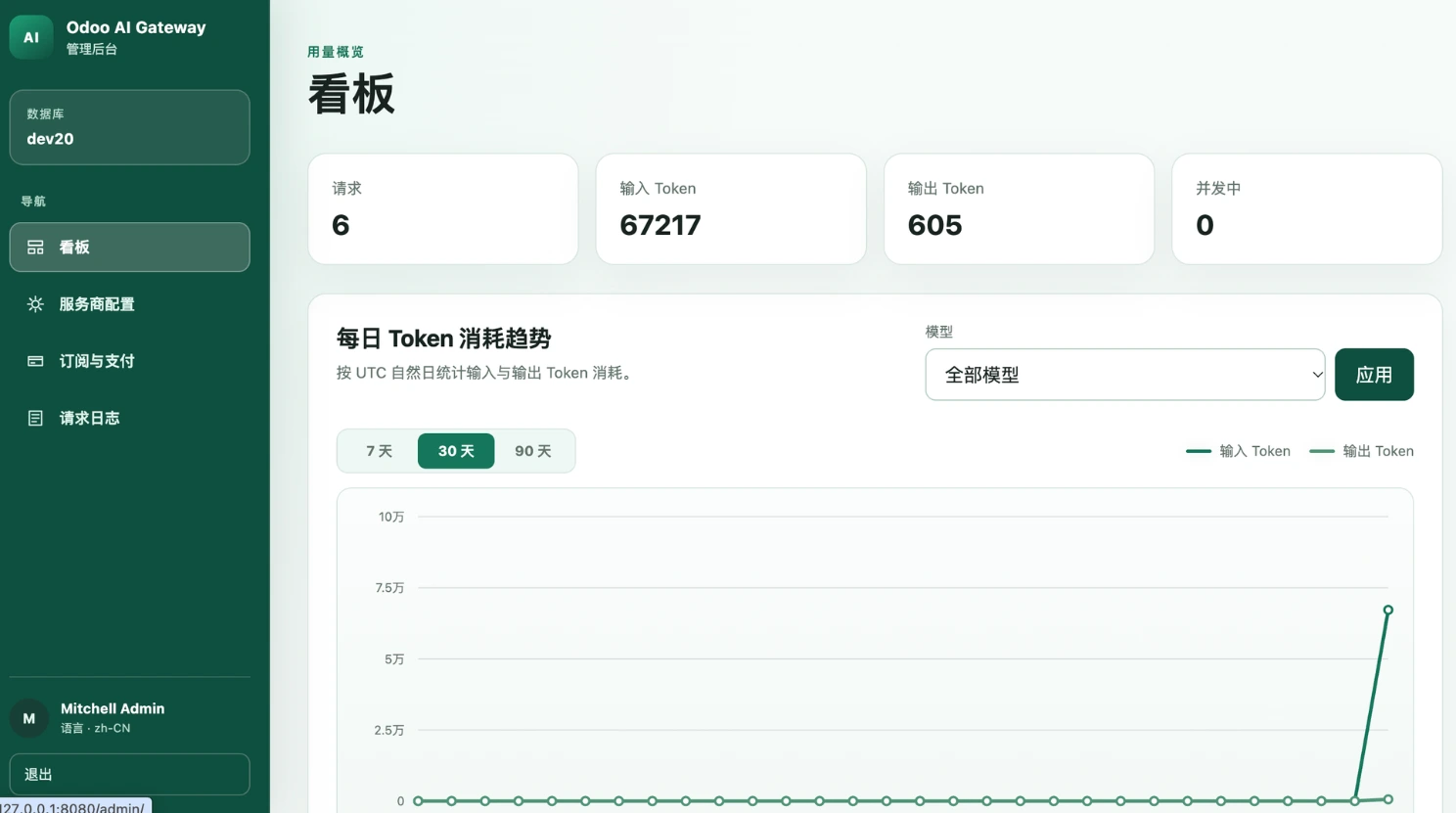
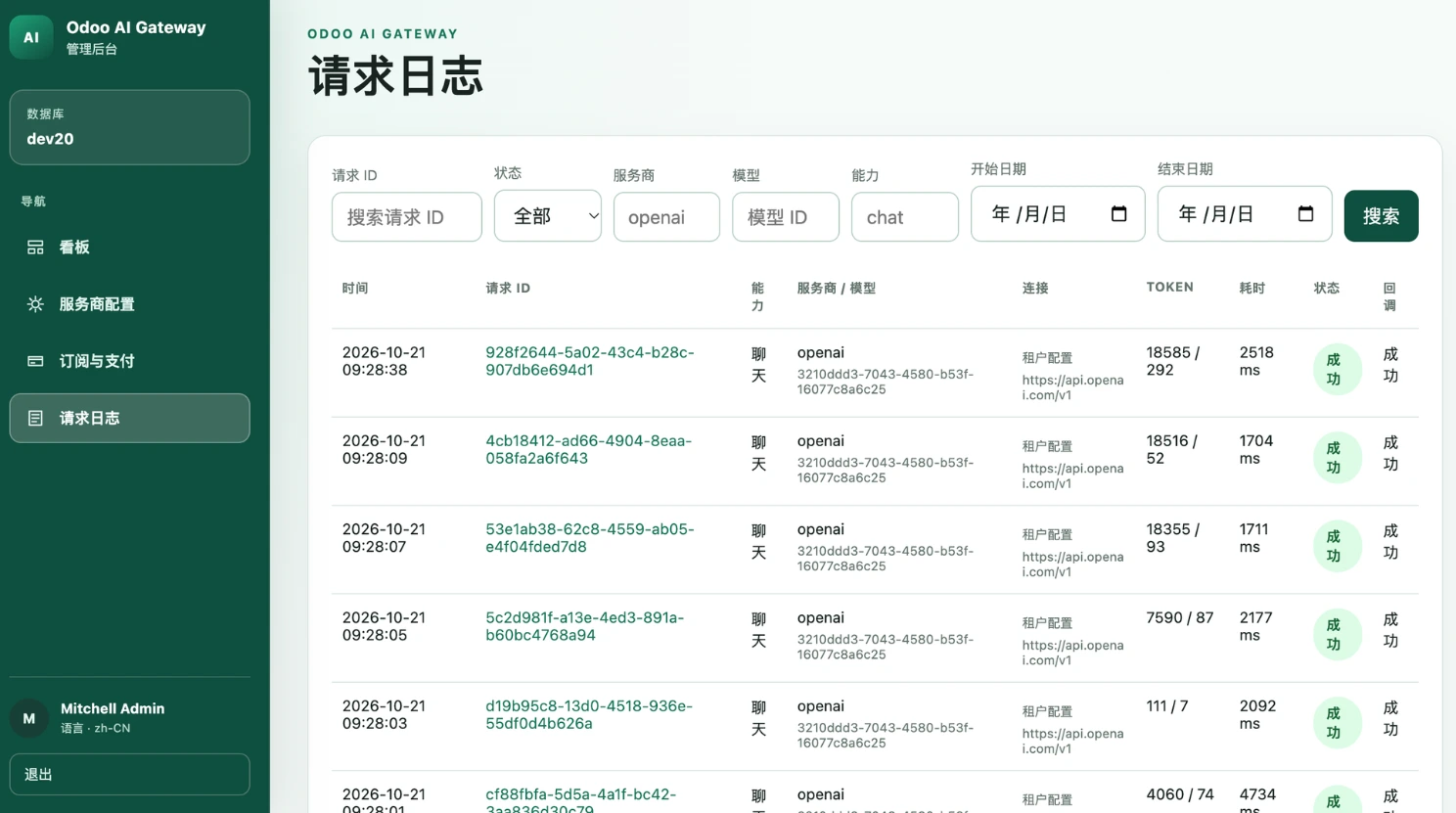
- The gateway backend can view the invocation and token consumption status.